This plugin allows you to explore the Skype data such as account info, contacts, calls, etc.
NOTE: This plugin is only available for Microsoft backups.
The data in the Skype plugin is divided into the following categories:
•Account Info: information about the user's Skype account
•Contacts: information about the user's contacts
•Calls: information about the user's calls
•Messages: information about the user's messages
•Attachments: information about attachments
NOTE: If attachments (except Pictures) are sent more than 30 days ago, they will be deleted from MS server and will not be available for viewing in EPV. All other data types will be available regardless of the terms of their storage. More detailed information about terms of data storage can be found here https://support.skype.com/en/faq/FA34893/how-long-are-files-and-data-available-in-skype
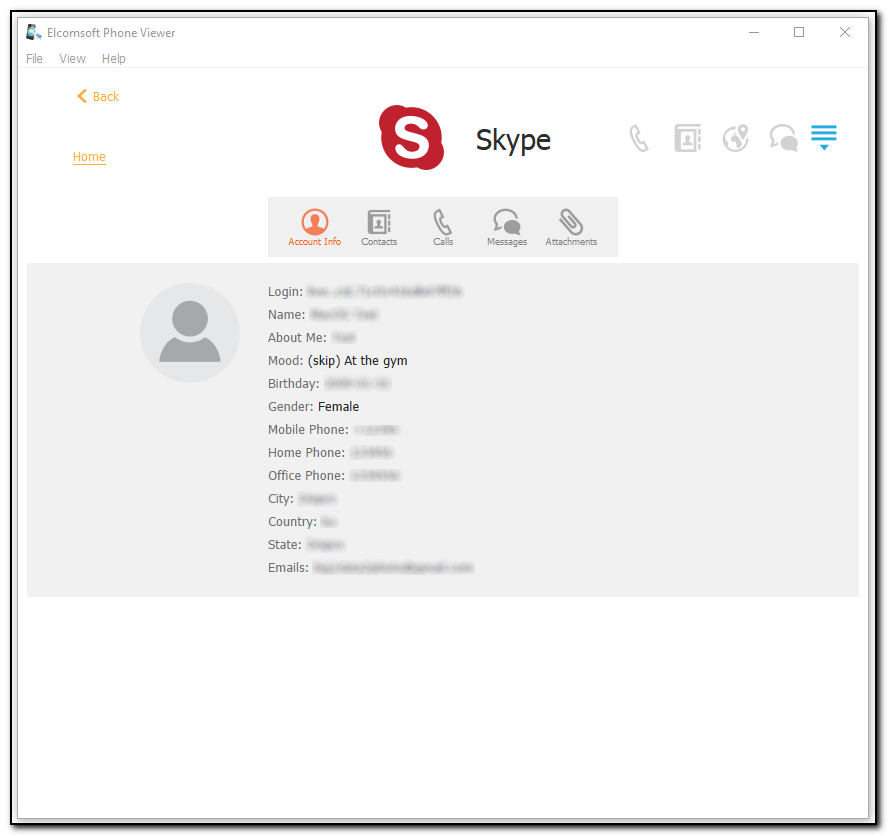
For Account Info, the following information is displayed:
•Login
•Name
•About Me
•Mood
•Birthday
•Gender
•Mobile Phone
•Home Phone
•Office Phone
•City
•Country
•State
•Emails
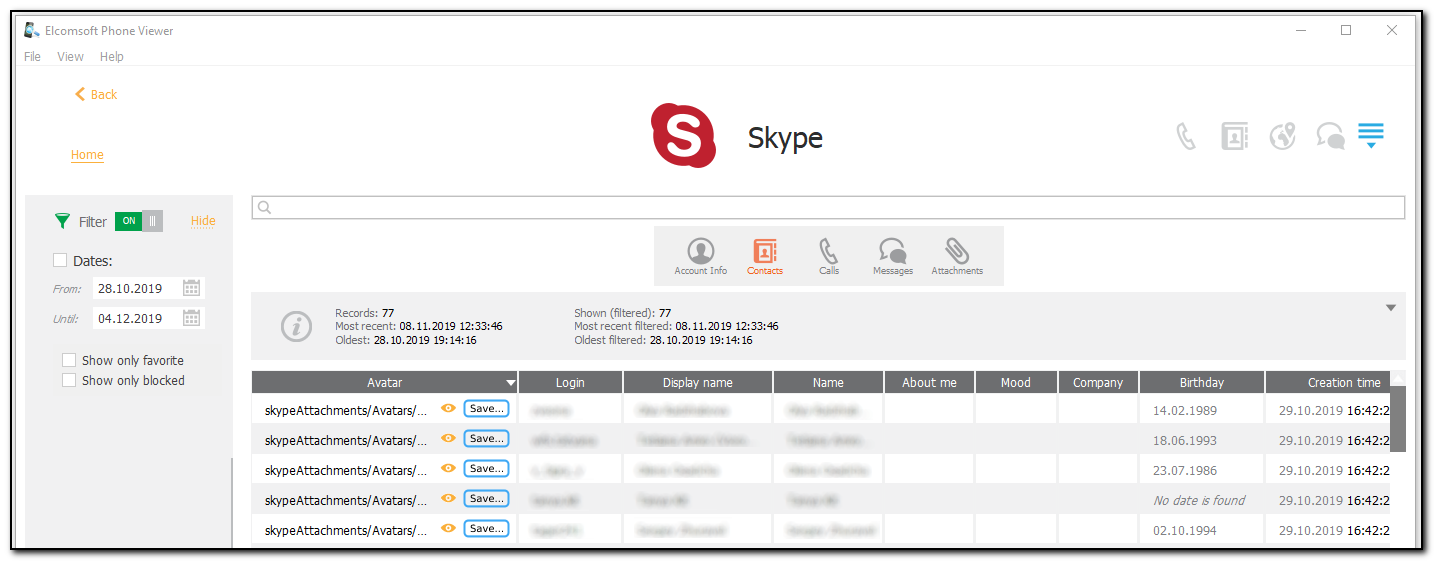
For Contacts, the following information is displayed:
•Avatar (To view the avatar, click the  icon. To save the avatar, click the
  icon)
icon)
•Login
•Display name
•Name
•About me
•Mood
•Company
•Birthday
•Creation time
•Gender
•Job title
•Mobile phone
•Office phone
•Home phone
•City
•Country
•State
•Is blocked
•Is favorite
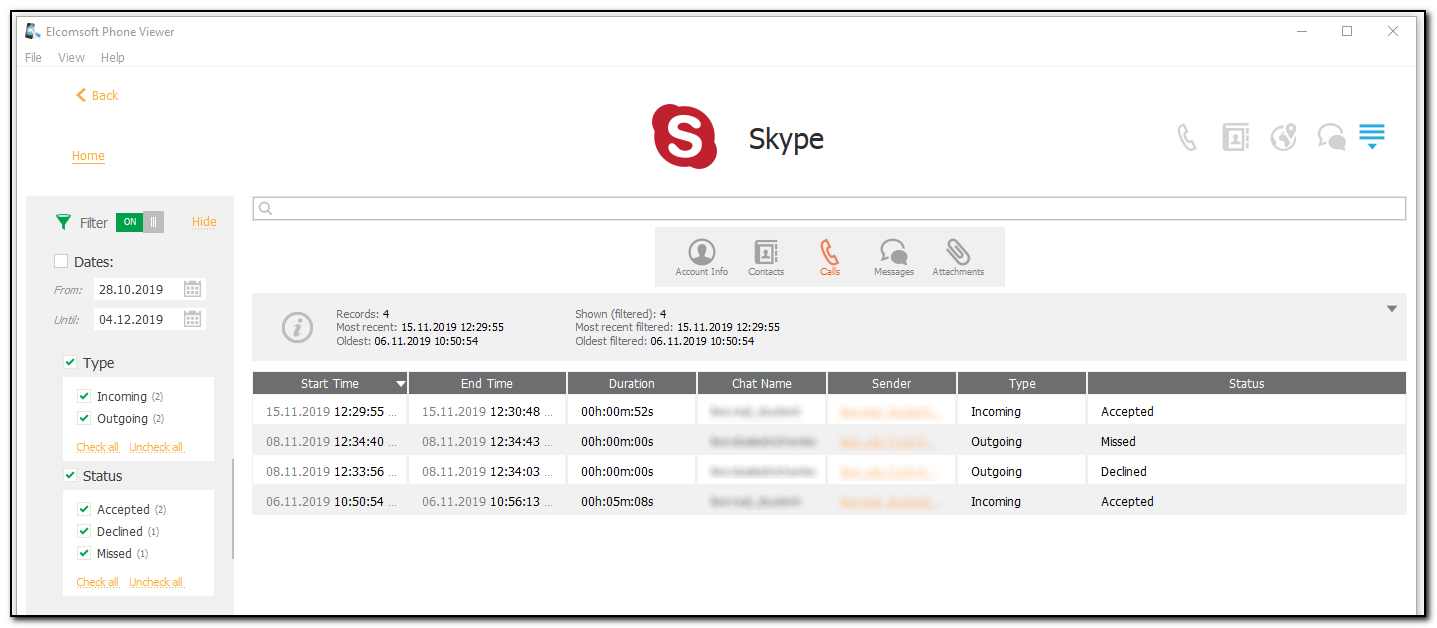
For Calls, the following information is displayed:
•Start Time
•End Time
•Duration
•Chat Name
•Sender
•Type
•Status
For Messages, the following information is displayed:
•Date
•Attachment (To view the attachment, click the icon. To save the attachment, click the icon)
•Sender
•Content
•Message Type
•Chat Name
•Bookmarked
•Edit Time
•Removal Time
For Attachments, the following information is displayed:
•Date
•File name (To view the file, click the icon. To save the file, click the icon)
•Type
•Size
•Sender
•Chat Name
•Attachment path
NOTE: If attachments (except Pictures) are sent more than 30 days ago, they will be deleted from MS server and will not be available for viewing in EPV. In this case only attachments metadata, such as date, size, file name, sender, and chat name will be available for viewing.
Searching and Filtering
To perform searches in Skype, enter the search request in the search field and press Enter. The search results will be highlighted in yellow. The number of search results will be displayed in the search field.
To filter out the Skype data, open the Filter pane by clicking the  icon on the left.
Enable filtering by switching the On/Off toggle, and define the filtering options:
•Dates: filters contacts, calls, messages, and attachments by the date range
•Call type: filters calls by type (Incoming or Outgoing)
•Message type: filters messages by type (Attachment, Call, Call Recording, Card, Contact, Flik Message, Location, Poll, Scheduled Call, or Text)
•Attachment type: filters attachments by type (Audio, File, Mojis, Picture, SWIFT, Sticker, or Video)
•Call status: filters calls by status (Accepted, Declined, or Missed)
•Show only favorite contacts
•Show only blocked contacts
•Show only edited messages
•Show only deleted messages
•Show only bookmarked messages